Showing posts with label TeacherTools. Show all posts

December 10, 2012

Teaching Technology to Kindergartners

A while back I promised you I would be detailing our EdTech Scope and Sequence by grade level.

Below you'll find the overview of Kindergarten tech skills.  It has been a little slow in coming, because I wanted to get the full K-5 Sequence in ready-to-use format before jumping into the nitty gritty, and it's ready now (mostly), so... here goes!

Here is a pdf of the full K-5 Scope and Sequence.


Please feel free to use, copy, print and distribute these to your team. Our sequence is broken down by grade level to make it easier for you to know which chunk is yours. This work is based on the NETS standards for students (which are  National Educational Technology Standards ...which were developed by the ISTE Professional Standards committee, funded by NASA in consultation with the US Department of Education....blah, blah, blah. You get it. They're legit, that's all. :) )

This represents many hours of work by a group of awesome tech smarties, and we sure hope it can save you a similar expenditure of hours! If you have improvements, suggestions, we'd love to hear them!

Kindergarten

Here's the nitty gritty.

As in any subject area, teaching tech skills to Kinders is about evening the playing field. They each come with a stunning range of tech experience. This year in particular, my Kindergartners are coming to me with absolutely no idea what a mouse is or how to use it. (This is very different from past years, thank you iPad). But these guys still need mouse skills...very much. So we start there.
If I sum up what Tech skills are required in Kindergarten it looks like this:


1. Teach them what a mouse and keyboard are and how to use them. 

2. Teach them what it means to "login" and "log out"

3. Let technology serve to make literacy and learning FUN for them! (This tool is kinesthetic, visual, auditory all at once...technology helps engage your struggling, disinterested kiddos. They'll make connections in front of the screen that you've been struggling for weeks with simply because it can hold their attention.)


Easy peasy, right?
Wait, I'm about to make it easier. Here is a single card with all the resource tools and links we use to accomplish this in our Kinder classrooms. You can download it (all the links should stay with it and then you can use it later), or use just use the links below. Here's what's on it:
  • Teach them to login. I give them each a little card with their login info and the time to find their names on the keyboard. 
This is a slow (kind of painful) process at first, but remember, these keyboard and mouse skills are what they're there to learn so if they only end up with a minute or two on the actual game, it's ok. It motivates them to learn and login faster next time when they only get a little taste. 

  • For practice, I send home this keyboard worksheet and ask parents to have them practice finding their names. 


If you laminate them, they can be used for dinner placemats and kiddos get a little bit of practice every day. This gets them logging in really fast! You can also keep old keyboards or copies of this page in your classroom for practice during "choice time".
  • Then we take them to Starfall.com. Oh my goodness.

If you've never put your kiddos on these games, you are going to love watching how they engage with the letters and sounds. This website also makes it so easy to differentiate. I can have one kiddo practicing letter sounds while the one right next to him is practicing onset and rime and reading books that challenge him. I love seeing them absorb the way they do when they're working on this website!

That's Kindergarten.
Next up: First grade!


Save URLs on your Desktop

Here's a Smart Kid trick I think you'll love.
Do you have websites you go to nearly everyday?
Did you know you can save links to them on your desktop so they're easy to get to?
Like this:


Now, with it on your desktop you can just double click to open the website.
But this trick gets better.
Maybe you have a bunch of links you want to save in a folder so you can use them again and again for a particular unit of study with your students.
Make a folder on your desktop by right clicking (Control-Click)


Now do the same thing as before, dragging your links into the folder


When you're finished you can file this folder away with everything else you store for that unit. Just drag the folder to where you want it using Finder.


Oh yeah...be sure you go into the folder and give those links intelligent names or they won't mean anything to you later.

NOW it gets even better...
Maybe you go to 5 websites everyday (email, calendar, Jennie's blog. wink) and you'd like easy access to them from your Dock.
Yep. We can totally do that too.

Here we go:


Remember to go into that folder and rename those links or they will be a pain to decipher when you have to move fast in front of 35 kiddos later.


And there it is all happy! It's going to look like a Web icon, because that's what it's full of unless you change it. Change it by doing a Control-Click on it and you'll get this menu. Choose Folder to make it look like a folder.


Now ask me if you can change that little folder icon to something cool like Marvel Super heroes icons.
Umm...


Oh. Yeah.
I'll totally show you how if you want me to. :)

Baah! How cool is that?!


September 18, 2012

Calendar Awesomeness


I like blogs that get right down to business, so I'm going to go straight to the important stuff here and then if you feel like reading about why I wrote this blog you can keep going. 
If you do, I promise you a good laugh at me and my ridiculousness by the end (rolls eyes).  
Here goes: 

How to Get in The Google Calendar Game:
There is plenty written about this, so I'll just provide some links.

1. Get a Google Account if you don't have one. This will give you access to Gmail (though you don't have to use it), Google Docs (another amazing collaboration tool), Blogger (which is how I'm writing this blog right now), and tons more.

2. Go make some Calendars. This link is for a 9 minute video for those of you who like to walk through set-up with a video tutor. But Google Cal is pretty intuitive, and you'll get pretty far by just playing with it. If you need to know how to get to it...just go to a Google search page and look at that top black bar.


3. Share. Just like with our kiddos. Share your tools :)
4. Sync your Calendars with your laptop and other devices...if you want. This link is to a blog post that gives good details about how to do this. But know that this step is only a convenience. Even if you don't sync, your Google Cal is available everywhere just by going to it on the web. :)

Note: Yes, it will sync with Android as well, but I didn't put a link for that here. If you want a hand with that, leave me a comment and I'll find a good resource for that too!


Now here's the rest of the blog about why you should do Steps 1-4 above!

At school last week we started a Calendar conversation. 
I made promises of Awesomeness. 
I stand by those promises, because...i.LOVE. my Google Calendars. 
I have 17 of them (yes one of them isn't showing up in this picture if you're the type who just counted.  I'm positively fond of you, if you're the one who just counted. hee.)


But change is never easy and many of us have other calendars we already use and don't want (need?) one more system.

Absolutely!
We should never add technology layers if they won't make things simpler, easier, more efficient, more collaborative, etc.

My litmus test for my teachers this year is this:
Will this technology save them time and effort while helping them do what they do (engage kids in meaningful learning) even more awesomely?   

If the answer is, "no but it's a neato technology...," then I won't bring it to them. That's my commitment to the Rockstars I work with.  In the case of Google Calendars though, there is so much potential for simplicity, time-saving and collaboration over any other tool available to them that it's well worth bringing to the table. (And it's free...what?!)
What are the benefits:
  • Google Calendars can be shared. This means that I can set up a Calendar for my team, share it with them and now we all can make changes to it, see each others schedule, etc. At school, our Principal can put important info (assemblies and recess duty) on a master calendar and the teachers can all see it in real time right up against their own personal calendars. That brings me to the next awesome feature...
  • Google Calendar can send you a Text or Email reminder. So in the case of my teachers, they can go into the Principal's Master Calendar on their recess duty entry and ask it to send a reminder to their phone the night before they are due on the playground. The beauty of this is they didn't have to remember to add their duty schedule to their personal calendar. It's already there on the shared one! They just ask for a reminder.
  • Everything is in one place and available wherever I have internet access. I can log on to any computer or internet device anywhere and have access to my calendar. I don't have to be on MY laptop. I can also have access to my boys schedule and my husband's work schedule
  • Everything can be Simplified. But I don't have to look at everyone's calendars most of the time. I can turn them on when I need to check and right back off. 

Now the part where you laugh at me.
Yeah. That's us the day I remembered to take him to 7th grade.
I believe in humor as much as I believe in leveraging technology. This is why I often do stupid things. Remember this blog post about my parental awesomeness?
I'm happy to report that we do have improvement since the first day of 6th grade, because we did in fact make it for the first day of 7th grade this year. 
We celebrated with cake.
However...
Today I forgot him at Cross Country practice. Didn't even think about him until my phone buzzed at 17 minutes past. 
Ask me why I forgot him. 
I was writing a blog post about how awesome Google Calendar is because you can have it send you text reminders so you won't be late picking up your kids.
Yeah.
He laughs at me, this boy. I do too, thank goodness. (I've always said, "if your kids know you're really, really crazy about them you can make a lot of mistakes and they'll be ok." I've now added, "but start a therapy fund just in case...")

I just set a reminder that will buzz my phone 17 minutes before I'm late next time.
Did I mention that I love my Google Calendars?

September 06, 2012

Emailing Your Classroom Parents

Remember this little post from last year?

Well, here we are again making our class email lists. Here is how to make an email contact list... And how to send it to your team so that you don't all have to enter the same email addresses! It's quick and SO easy. These videos are like a minute long so you totally have time for this!
Ready: Go!

How to Create and Share an Email List in First Class


How to Add that List to your Contacts once you get it.


If you want the other fun tricks like how to set a signature in your email and how to make a cute little outgoing mail icon...check out last year's post. It's still the same.

On another note:
About email protocol... When you are sending an email to a large group (entire class), the best protocol is to send the email to yourself and Bcc: everyone else. That makes it blind so others can't see all the recipients and will help avoid some issues that the server will have when emailing large groups. In First Class you'll have to choose the "Show Bcc" button in order to get a Bcc field to use. Like this:


Happy Emailing!


September 05, 2012

SMARTBoard Software Download

If you've been upgraded to Lion, you'll definitely want to upgrade to the Smart Software Version 11 for your SMARTBoard. We hoped the older version would work on lion, but it won't.
Here is the link to for that Software.


If you didn't upgrade to lion and need to install the SMART software, use the link in this blog post from last year. The older versions of SMART are still available.
Highland teachers: Let me know if you need the Activation Code. I'll email it to you!


June 04, 2012

Backing Up Your Data


Just like Bookends... I blog at the beginning of the school year and then again at the end. Oh brother! Such is the life of a busy student, I guess. Ha!

Here we are, at the end of the year, and we need to Back Up all the pictures and videos of those precious little faces.

I get a lot of questions about what external hard drive to buy, how much it will cost, etc. It changes, of course, but I did a little digging around and here's what I know as of today:

How Big of a Hard Drive do I Need?

If you make movies a lot you'll need way more.
If you don't save pictures or movies you'll need way less.
Here is an article that describes  the Megabyte-Gigabyte-Terabyte thing. It's helpful.
But here's the short, un-scientific version:

  • 1MB -Is about the size of the information in a medium sized novel.
  • 1GB -Is a little over a thousand Megabytes (a thousand novels?)
  • 1TB -This is about the same amount of information as all the books in a large library or 1610 CDs worth of data. 
How does this translate to pictures and movies? Depends.
I bought a 320GB a few years ago. I put about 7 years of family photos on it plus a bunch of other stuff and it's only about one-third full today. Does that help?
Really high-res photos and videos take up more space.

What Hard Drive Should I Buy?

You can get a 500GB for around $70 right now. Here are a couple with good reviews, but you might check for sales at Costco or OfficeMax.
Seagate -$70
Western Digital -$65
If you bump up to a Terabyte you're looking at around $100

Here's How to Partition Your Drive

Can I Use the Same External Drive to Backup My PC and my Mac?

You can, but it takes a little fudging with.
Here's a great article about how to make that happen. It even has a video that will walk you through it. (I have to do this to mine.  It was set up for my PC out of the box, so my PC files are saved to it. I can get files off of it and use them on my Mac, but I can't save Mac files to the drive...yet. I think I'll partition it, like the article says)

September 19, 2011

How To Ensure Your Privacy In Facebook

Some of us love our Facebook, some of us hate it, but most of us are on it.

So what do you do when one of your students sends you a Friend request? It can feel like it oversteps your professional boundary, but they're so cute...you don't want to reject them! Here's how to set up your privacy settings so that you can accept their request and still keep your privacy.


 First Create A Friend List and put your kiddos on it (their parents too if you feel like it)
(If you can't see these screenshots, just click on them...)


Go ahead and add people to the list.
  Now Change Your Security Settings To Exclude That List.


 Now whenever you post a status, this list will not see it, unless you change this setting.


You can lock down everything and make it seem like you're just never on FB, or you can leave up some pictures, etc. And the cool thing is, you can always change this on the fly...if you post a status or photo you want everyone to see, you can change it right from there. Just look for that little Custom gear!
*Do pay attention though...when you change this setting in a status update, that change becomes your new default so be SURE you change it back!

Voila. You're back to having a Professional AND a Personal life! :)

September 06, 2011

First Class Email Magic


My job is fun...mostly because people insist on being fun.
Really! Here's an example.
I often get asked questions about First Class email. I'm not the authority on it, but we can usually solve whatever the issue is and then after we've finished, it never fails that the person then asks me this:
"Hey, do you know how people get that cute little icon in front of their name when they send emails?"

I love how many people insist that if there is a way to make email more fun...they want it. So this is for you my fun friends. Have a penguin or a popsicle if you must. Mine's a sailboat, and maybe in January I'll find a palm tree!

But first we'll do the important one. Here's a short video on how to create your email group lists (for classroom parent lists and such) and also how to share them with your team so that they don't have to type those email addresses in too!


How to Create and Share an Email List in First Class

   ...and How to Add that List to your Contacts once you get it.


How to set your Cute little Outgoing Mail icon in First Class


How to make an automatic signature on your outgoing mail in First Class


September 02, 2011

How To Introduce Your Brand New Smartboard

Here she is, implementing New Technology with sagacity and charm
Our entire school got new SMARTboards this year. Every classroom, every teacher, whether they wanted one or not. We didn't exactly do this on purpose. I'm a big believer in letting the teacher decide how and what will be their best use of technology, but our parents got really excited about this one. And when parents get this excited about spending money on their kiddos...you just nod your head and say, "Rock on Bro!"

So there it is...all shiny and white and new...
 And the kids are gonna be Soooo excited!

Now if you could just figure out what to do with it.
Here are a couple of ideas that may give you a jumpstart.
There are a bunch of great "Back To School" Notebooks on the Smart Exchange website. Here are a couple I recommend:


Simple Attendance Taker for K-2

For the younger kiddos (about K-2)
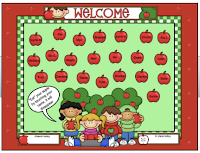
This is one page of pure learning simplicity. You just change the names on the apples to your kid's names. The kids touch their apple and it disappears (with a cute little chewing sound). This way they all get to touch the board the first day (that matters if you're them! :))


Back To School Activities for K-2
Back To School Activities for 3-5
I like these next two, because they're longer and give a great overview of a bunch of SMARTboard functions.

Engaging.

Also, the teacher notes (little pull downs on the top left) for each page are really well done.

Just click the links, download them and start playing around. You don't have to be plugged into the board in order to get yourself oriented to the software and you can't hurt anything. No matter what you do on this first week back, if you let them touch the SMARTboard, you'll for sure be the uncontested, most awesome teacher ever.

I'm just sayin...

DOWNLOAD  Software Now
Also, If you haven't downloaded the SMART Notebook software, here is the post about how to do that. (Highland: I'll email the code out as soon as I get access to my email account, but you can download and get started without the code and add it in later)
Related Posts Plugin for WordPress, Blogger...